
LKDN Autopilot manual
This guide takes you from your first sign-in to everyday use: how to connect LinkedIn, how to fill in the setup in seven steps, what the autopilot does every day, what you do when someone replies and how to pause it. The pictures are real screenshots of the app with made-up sample data: names, numbers and addresses belong to no client.
Three things to know before anything else:
- The autopilot works from your LinkedIn account, at the pace of a person. It searches, looks at profiles, asks to connect, asks one question to whoever accepts and stops when someone replies. From that moment the conversation is yours.
- Nothing starts until you decide. The setup ends with a summary of what it would do tomorrow. The autopilot turns on only when you press the button, and you can stop it whenever you want.
- We do not promise results. The autopilot does the long, repetitive work consistently; how many people accept and reply depends on who you look for, what you write and how your profile presents you. We do not promise numbers of contacts, replies or meetings.
Contents #
- What it is and what it does
- Before you start
- Signing in to the app
- Connecting LinkedIn safely
- The wizard, step by step
- Segments and the search
- The invitation note and the opening question
- The summary and the start
- The dashboard
- What happens every day
- What to do when a reply arrives
- Pausing and resuming
- Limits and pace
- Warming up the account
- Why it is sometimes slower
- Optimize your profile
- Using the API and AI assistants too
- From your phone
- Frequently asked questions
- Troubleshooting
- Contact
What it is and what it does #
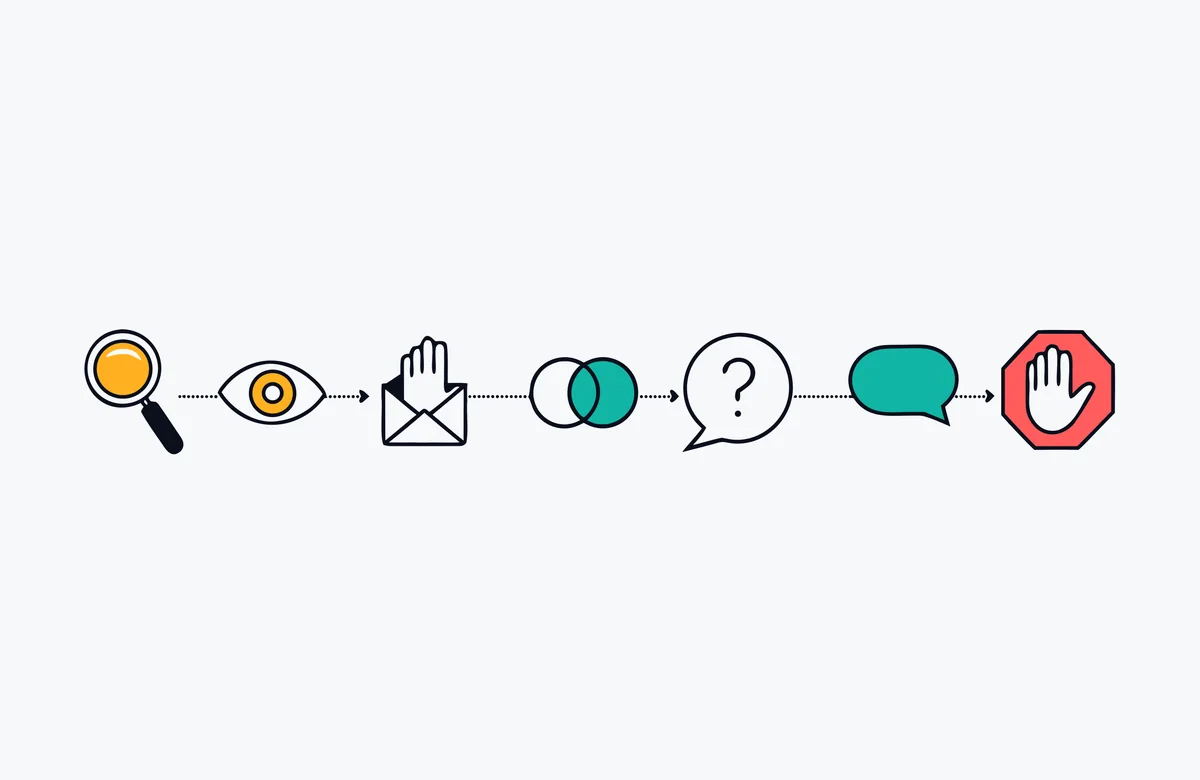
LKDN Autopilot runs a single LinkedIn prospecting routine for you, from your account. You tell us who your best clients are; we build the searches, you confirm them, and every working day the autopilot does this, in order:
- It searches for people who resemble your best clients.
- It visits the profile of a person (they see that you looked at them).
- The next working day it sends the connection request, with your personal note if your LinkedIn plan allows it.
- If the person accepts, it sends a single opening question.
- If the person replies, the autopilot stops for them and sends you an email. From there on, you do the talking.
What it does NOT do #
- It does not hold conversations. There is no artificial intelligence replying in your place. The AI only helps you prepare drafts during the setup; what goes out is the text you approved, with the placeholders filled in. No model writes messages while the autopilot works.
- It does not insist. No sequence of follow-ups: one request, one question, then that is it.
- It is not a CRM. It does not keep your deals or your conversations. You read and handle the replies on LinkedIn; if you want to bring them into your CRM, you can use the API.
- It does not contact everyone. It skips people in categories we do not contact (for example network marketing), people who are already your connections, people outside the countries and languages you chose and people you excluded.
- It does not promise numbers and does not remove the risk: we talk about it in the section Limits and pace.
Before you start #
You need very little:
- A LinkedIn account of your own, the one you use to talk to clients, with a well-kept profile. Every invitation makes a stranger open your profile before deciding: if it is empty or generic, no note will save it. That is why there is Optimize your profile.
- Your phone or authenticator app at hand, if your account uses two-step verification: you will be asked for it while connecting.
- About twelve minutes and an idea of three to five of your best clients to describe. You do not need to know LinkedIn’s search filters: we build them.
Which LinkedIn plan #
It works with any account, but the note and the volume change. We detect the plan: you do not have to declare it.
| Your account | Requests per day | Note with the request |
|---|---|---|
| Free | about 5 | no, the request goes out plain |
| Paid, even the cheapest | up to 20 | yes, up to 300 characters |
| Sales Navigator | up to 20 | yes, up to 300 characters, with more search filters |
The cheapest paid plan, Premium Career, is enough, and it is the one we recommend. Sales Navigator is not needed: it only adds search filters. With a free account LinkedIn allows very few requests with a note per month: we prefer to send plain ones every day rather than five careful ones and then nothing more. If you move to a paid plan in the future, we detect it and the volume goes up.
Signing in to the app #
The account is created when you buy the service: there is no separate registration. You have two ways in, and they lead to the same place:
- From the area where you bought it, with the link you find there: you get in without typing the password.
- From lkdnautopilot.com/app, with your email and the temporary password we sent you. At the first sign-in we ask you to choose one of your own.
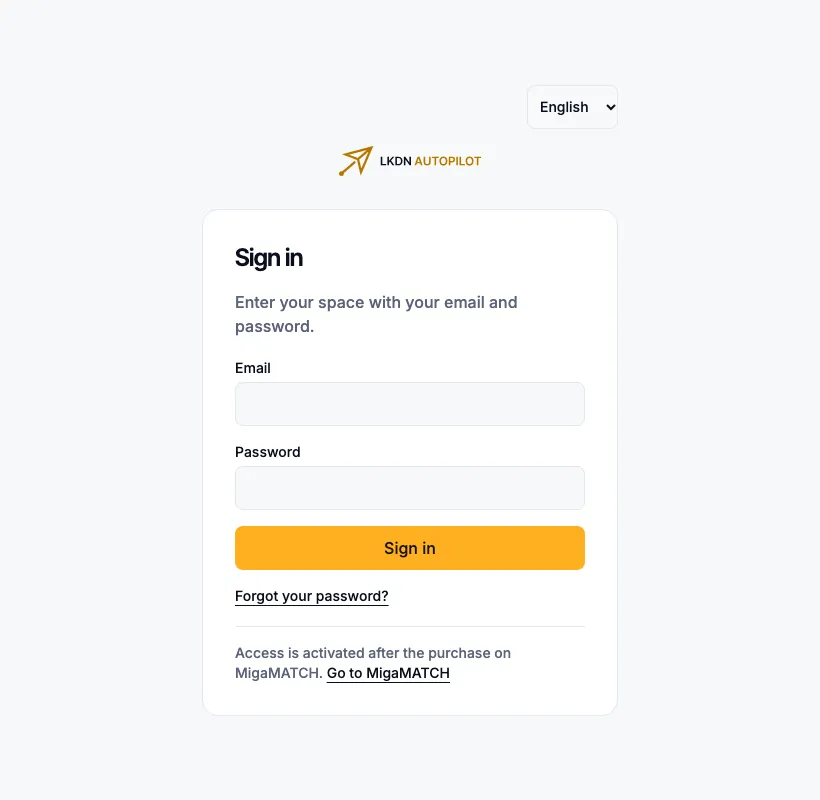
Before you begin we show you a Before you start screen: you must accept the Terms of service and the privacy notice, and separately approve some clauses. Without these confirmations you cannot go on.
Forgot your password? From the sign-in page choose password recovery: we email you a code of 8 digits, valid for 30 minutes, and with it you choose a new password. The code works only once and you can get it wrong only a limited number of times.
Connecting LinkedIn safely #
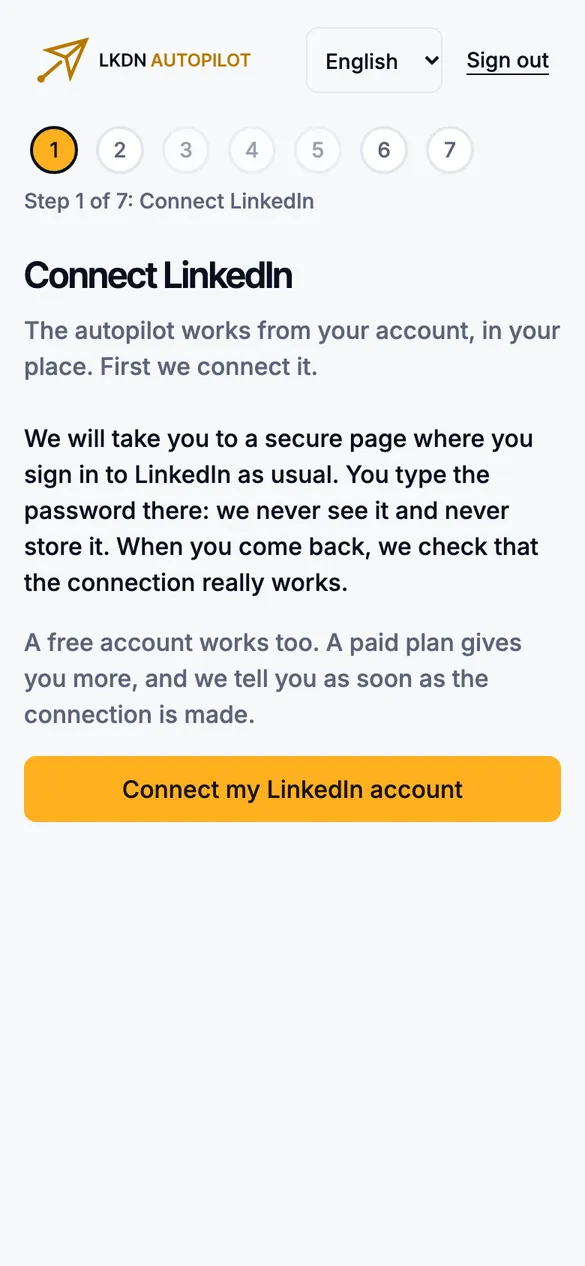
The first step is to connect your account. We do it with a hosted connection: you press the button, we take you to a secure page where you sign in to LinkedIn as you usually do (with two-step verification if you use it), then you come back to the app.
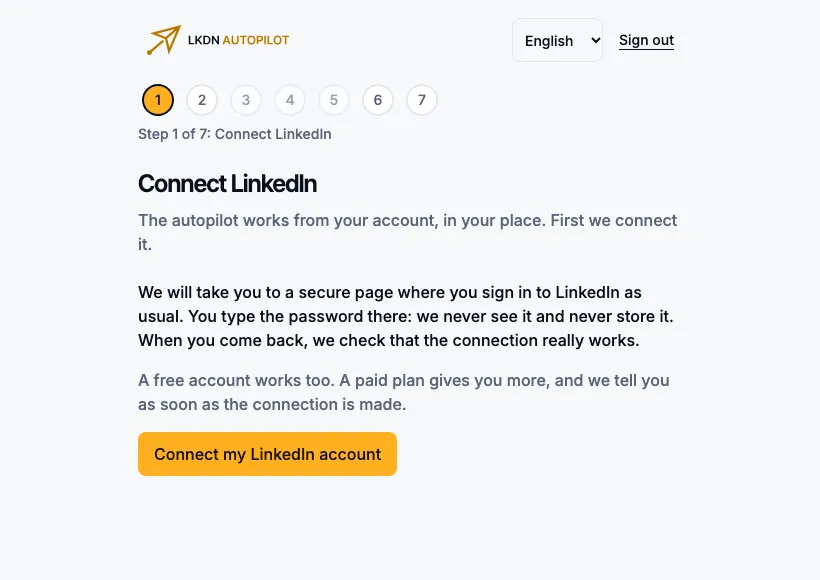
Your LinkedIn password does not pass through us. You type it on the secure page; we do not see it and we do not store it, neither in our archives nor in our logs. After the connection we keep only a reference to your account, which we need to work on your behalf.
When you come back, we do not trust the mere return: we check that the connection really works. It can take a few moments. If all goes well you see the green Connection active card, with your name and the LinkedIn plan we detected.
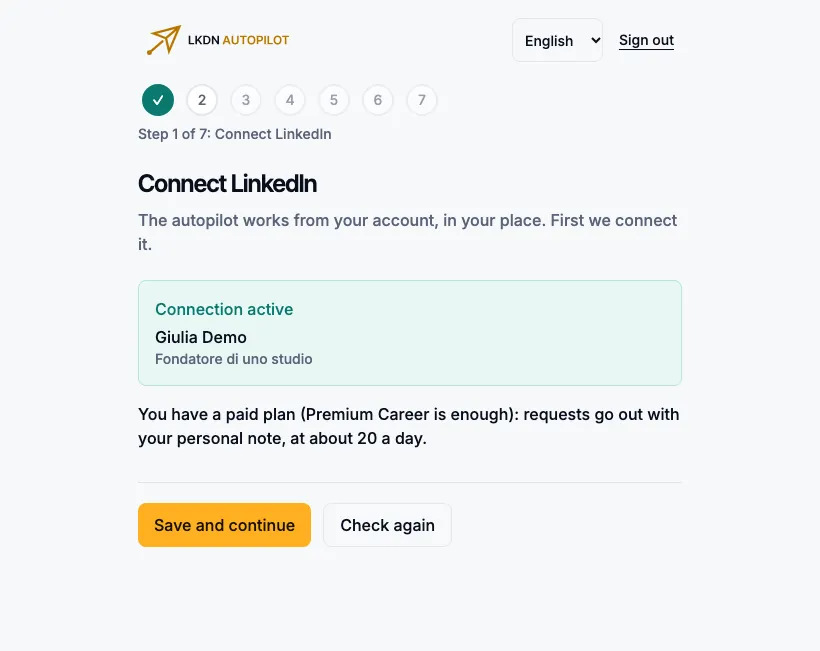
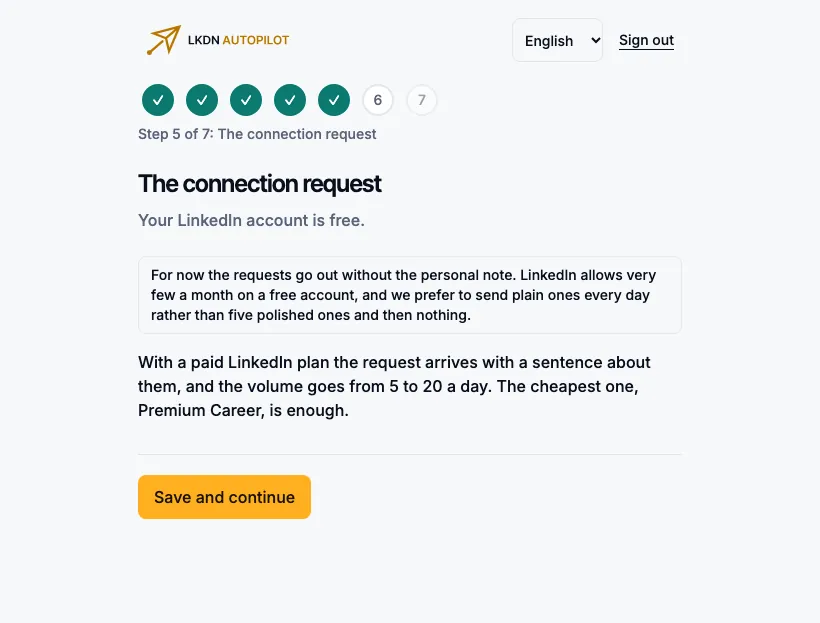
If you have a free account, the page tells you right away in one sentence, with what changes:
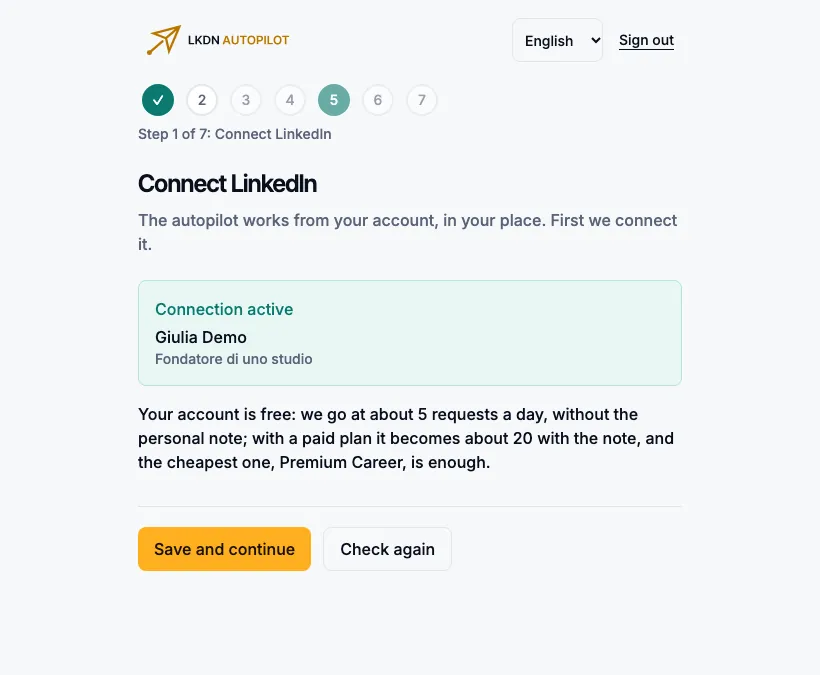
If something is wrong (the connection does not show as active, or you closed the page before finishing) you can check again or try again whenever you want. Later on, if you change your LinkedIn password, turn on two-step verification or end the session from the security settings, the connection can break: the dashboard tells you and you just reconnect with one click.
The wizard, step by step #
The setup is made of seven steps, one per screen. At the top a row of dots shows where you are: completed steps are green and you can reopen them at any time. What you write is saved on its own when you leave a field, so you can stop and pick up later where you left off.
If the LinkedIn connection is not available yet, you can still fill in the steps that do not need it: your business, the opening question and where we notify you.
Step 1: connect LinkedIn #
We have just seen it. The step is complete only when the connection really works.
Step 2: your business #
Four short sentences so we understand who you are before writing anything in your name:
- What you sell, in one sentence. For example: management software for dental practices.
- Who you want to meet. The role and the type of company.
- Why they should talk to you. The concrete reason it would be worth their while.
- How you write: three adjectives. For example: direct, friendly, precise.
If you do not know where to begin, press Suggest a draft: we read your profile and propose two drafts of the four fields. You choose and correct; the AI never saves anything on its own.
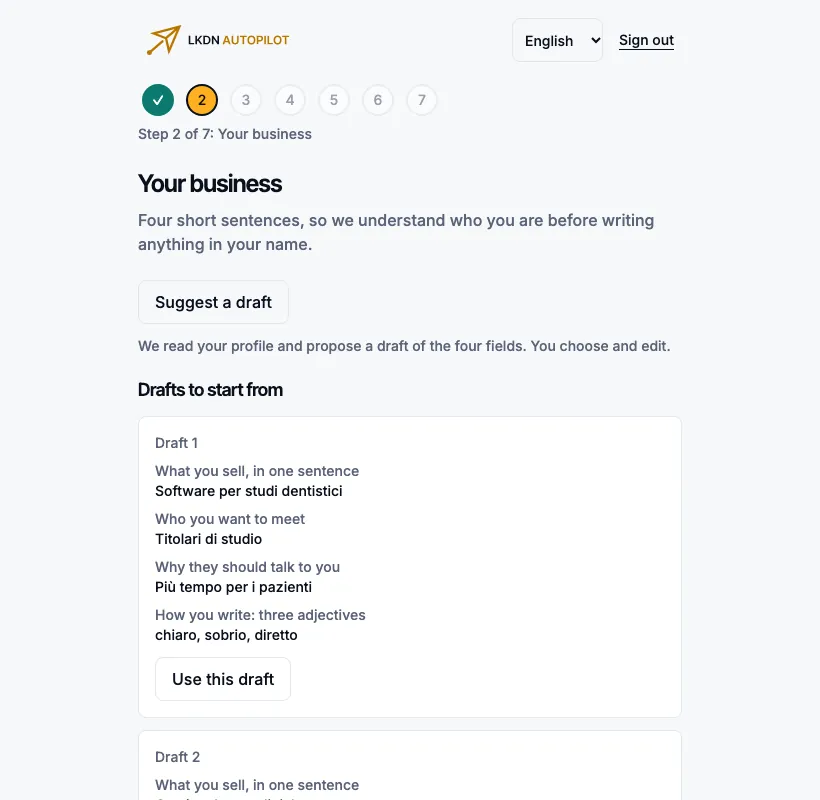
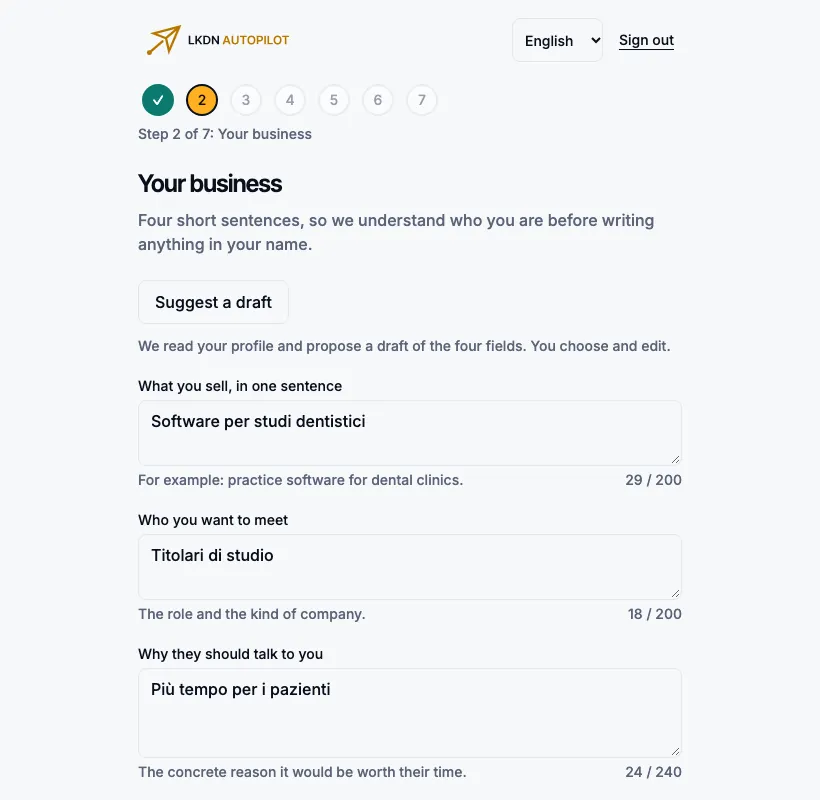
Step 3: who you want to meet #
Here you describe three to five of your best clients, one line each (for example: dental practice in Verona, 6 people). Add the countries where you can work and whether you want to reach only decision makers (owners, directors) or also people one level below. We say more about it in the section Segments and the search.
Step 4: your searches #
For each segment you accepted we prepared a search and really tried it: you see the real number of people and the first five.
Step 5: the connection request #
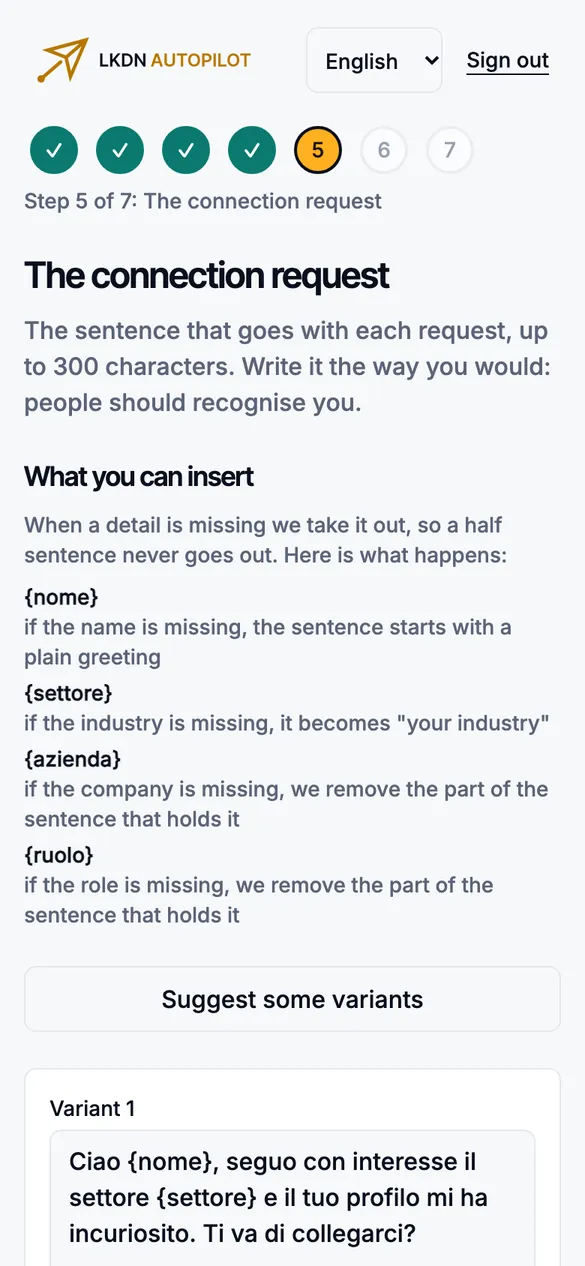
The note that goes with each request, up to 300 characters. See the section The invitation note and the opening question.
Step 6: the opening question #
The first message when someone accepts: one single question, curious, with no offers. If you prefer not to ask questions, you can turn it off: we still let you know if someone replies.
Step 7: where we notify you #
The email for notifications (usually the one you sign in with, but you can use another), the time of the daily summary (usually 18:30), the time zone, the working days and the days to skip. Two confirmations are also needed: one on the risk of using LinkedIn and one on data processing. You tick both after reading the text we show you; without them nothing starts.

For working days, by default we go from Monday to Friday. You can add Saturday yourself; Sunday never. You enter holidays or local public holidays here: on that day we do nothing.
Segments and the search #
The point where many products of this kind get lost is the search: you need to know LinkedIn’s filters and build a search address by hand. Here you do not do it. You do not paste addresses and you will never see a search address.
Your best clients #
In step 3 you tell us who your best clients are. From these lines, and from the network you already have, we work out the traits of the people to look for. We read your network in aggregate form and keep no copy of the names.
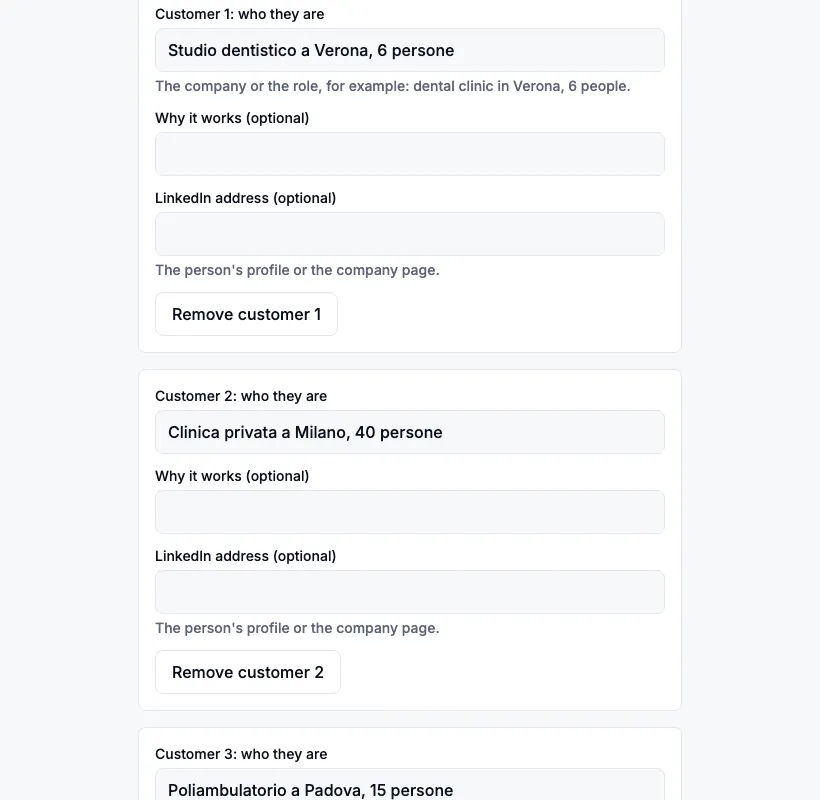
The proposed segments #
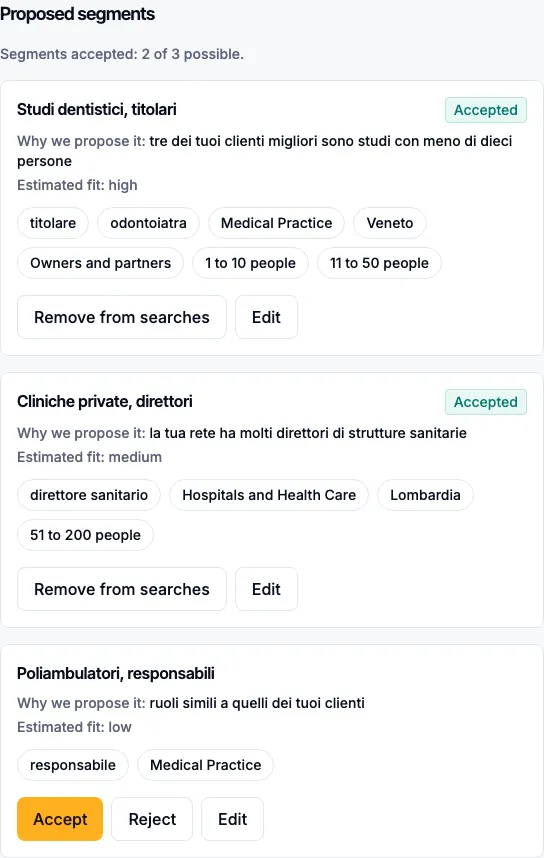
With Propose segments we show you a few proposals. Each segment is a type of person (for example owners of dental practices in Veneto) with the reason we propose it and an estimated fit. For each one you can:
- Accept: it becomes a search.
- Reject: we will not use it.
- Edit: you change the name, the roles, the industries and the areas. Industries and areas are always chosen from a list, by typing the first letters: that way a filter LinkedIn does not know never ends up in the search.
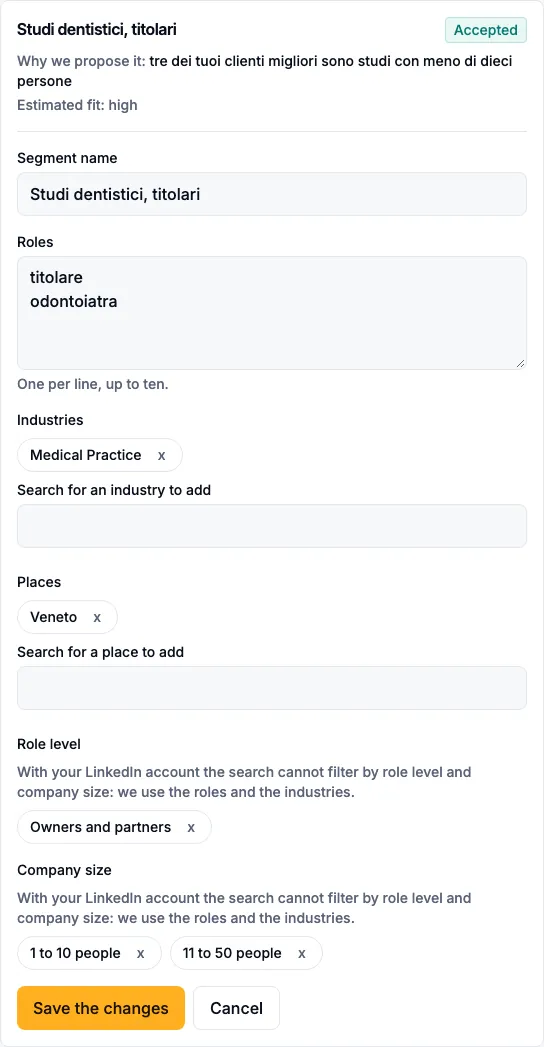
With a Sales Navigator account you can also filter by seniority and company size; with the other accounts we use roles and industries.
The searches #
In step 4 you see, for each accepted segment, a search already built and really tried: the real number of people it finds and the first five.
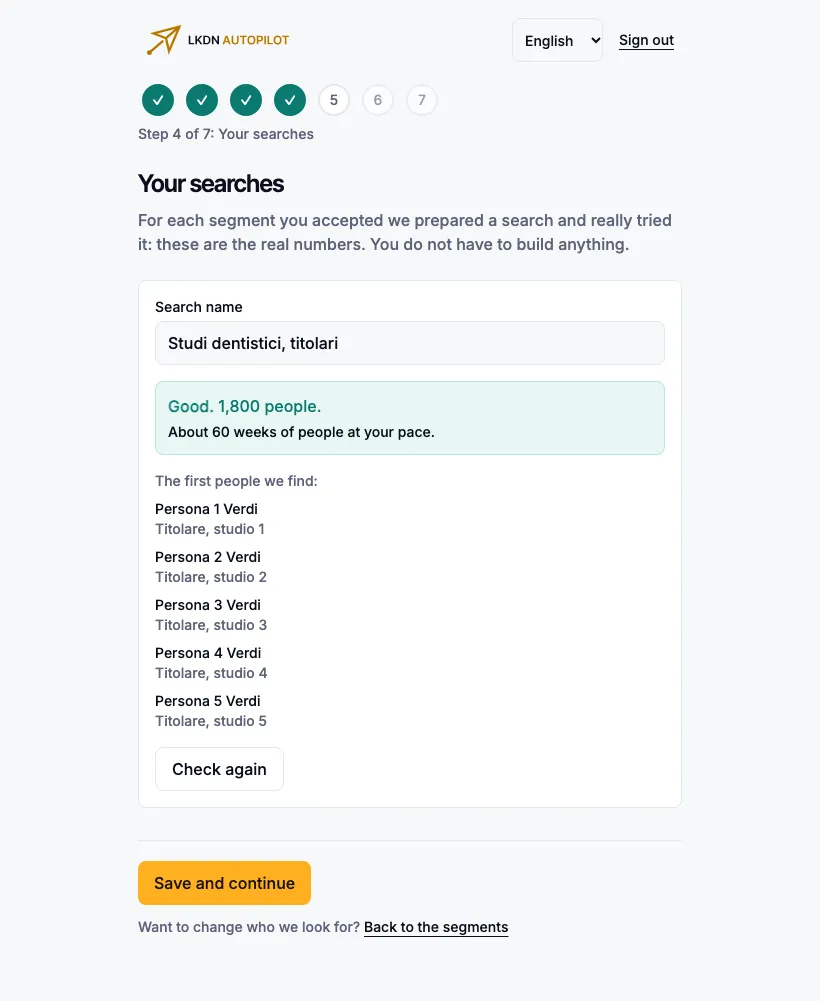
The number has a precise meaning:
- Good: there are enough people, and we tell you for how many weeks of work at your pace.
- A lot: you can start like this; with one more filter the search becomes more precise.
- Too few: below a minimum threshold the search cannot start. We offer to widen it with one click (for example by removing the areas or a filter) or to remove the segment.
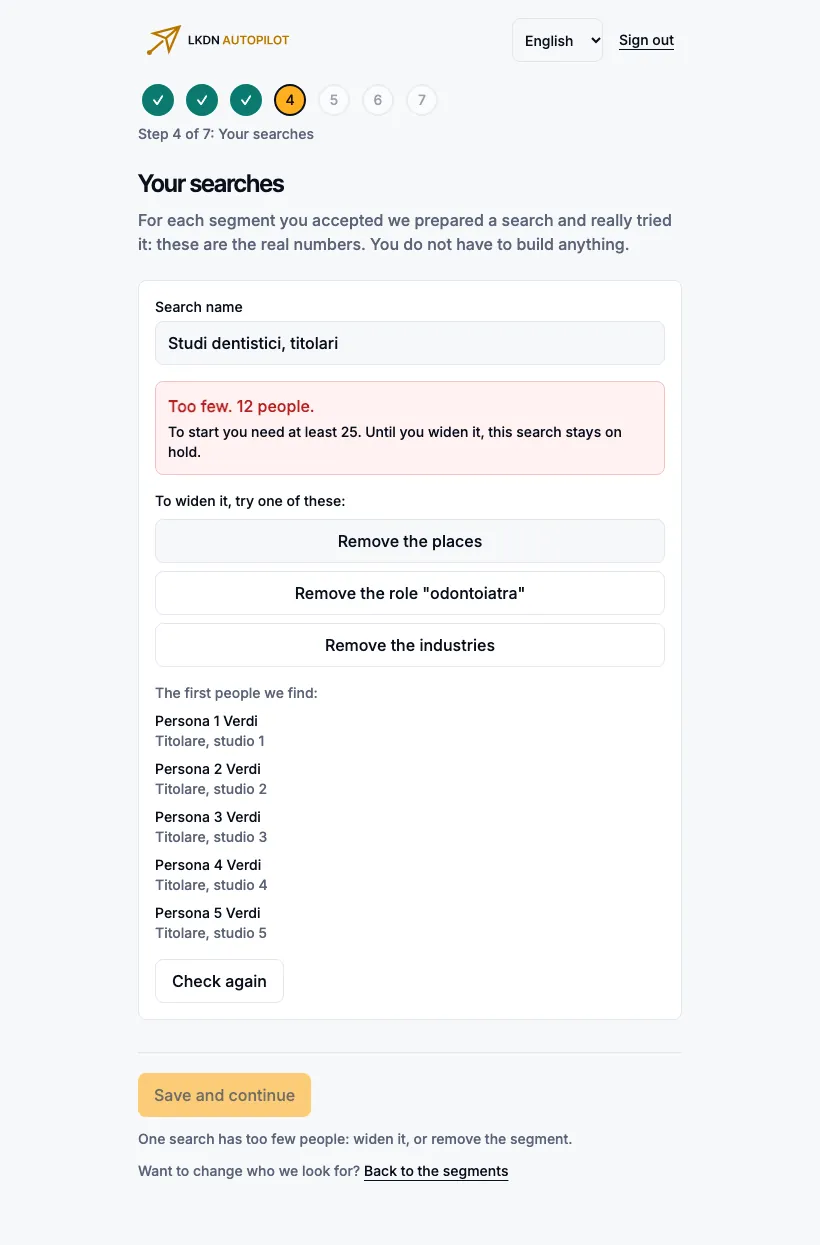
When a search runs out of people, we tell you in the daily summary, with the suggestion to add another one.
The invitation note and the opening question #
They are the only two texts the autopilot sends in your name. You write them (or choose them) and you approve them; at the moment of sending the system only replaces the placeholders with the person’s details.
The connection request #
The note that goes with the request, up to 300 characters. Write it the way you would write it: people should recognize you. You can insert four placeholders:
{nome}: the first name. If it is missing, the note begins with a simple greeting.{settore}: the industry. If it is missing, it becomes “your industry”.{azienda}: the company. If it is missing, we remove the part of the sentence that contains it.{ruolo}: the role. If it is missing, we remove the part of the sentence that contains it.
A half-finished sentence never goes out. When a detail is missing, we remove it. Below the text you see how three sample people would read it: with all the details, without the industry, without the name. Always check the version without details: it is the one many people will receive.
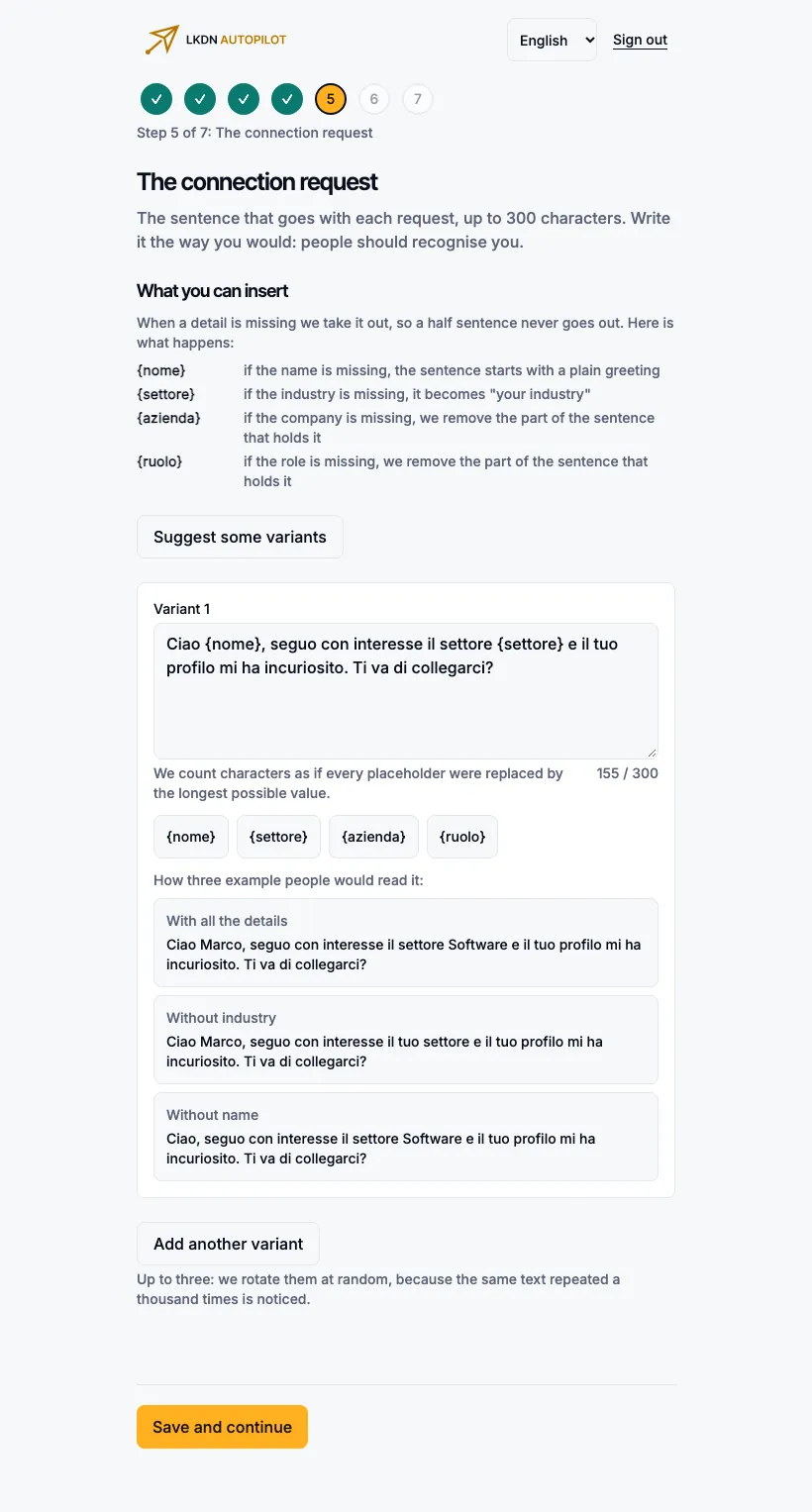
You can keep up to three variants: we rotate them at random, because the same text repeated a thousand times gets noticed. To write well a few rules apply, and the app checks them for you: no links, no phone numbers, no words in all capitals, at most one question mark, no long dashes.
With a free LinkedIn account this step is read-only: requests go out without a note, because LinkedIn allows very few per month. We do not make you write a text your account cannot send.
The opening question #
It is the first message after the acceptance, up to 450 characters. It must be a question, curious, with no links, no prices and no offers: a message that sounds like a sales pitch is the fastest way to lose a person who has just connected. If your question talks about prices, offers, demos or calendars, we warn you and ask whether you want to rewrite it; if you want, you can keep it as it is, but the rules on the rest (links, phone numbers) still apply.
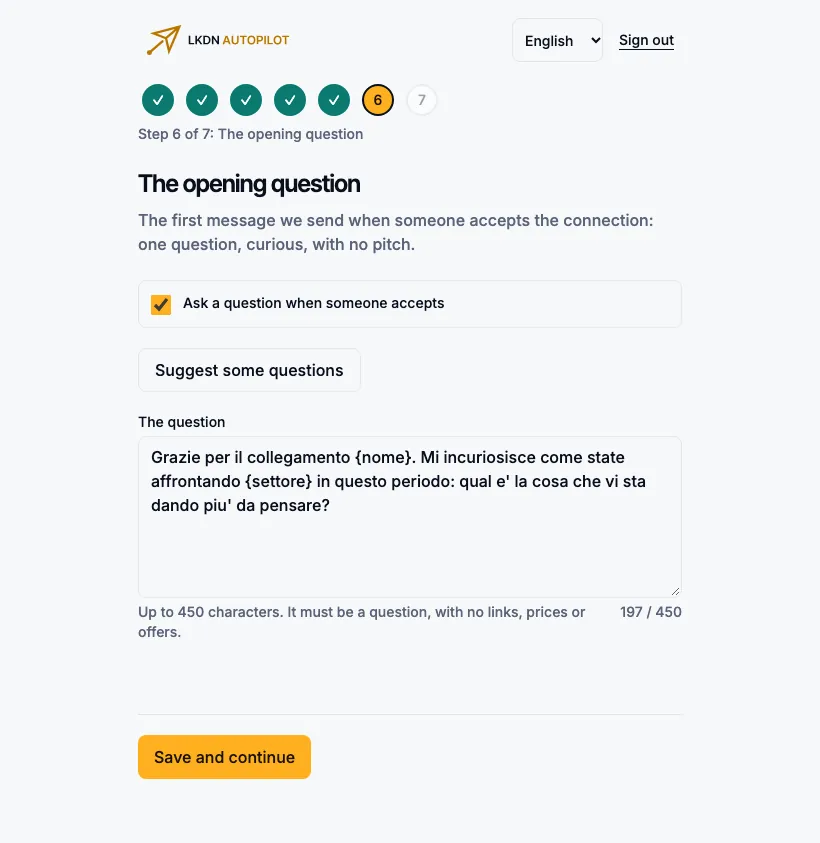
In both steps you can press Suggest some variants (or some questions) to get drafts: you choose them, correct them and approve them. The assistant prepares drafts during the setup; it writes nothing while the autopilot works.
The summary and the start #
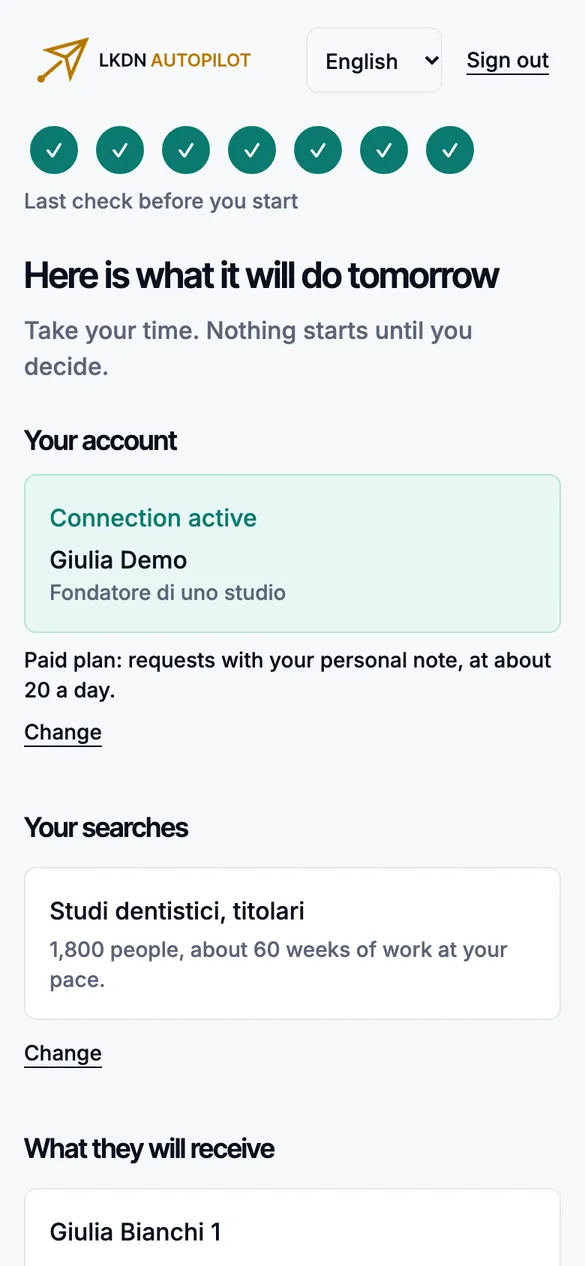
Once the seven steps are done you reach the summary: “Here is what it will do tomorrow”. It is the most important screen, and nothing starts until you decide. It shows you:
- your account and the detected plan;
- the searches, with the real number of people;
- what three real people from your first search would receive: the request and the question, already written with their details;
- how many people we will visit and how many we will send the request to tomorrow, with the real numbers of your account (lower at first: see Warming up the account);
- the first people we would work on.
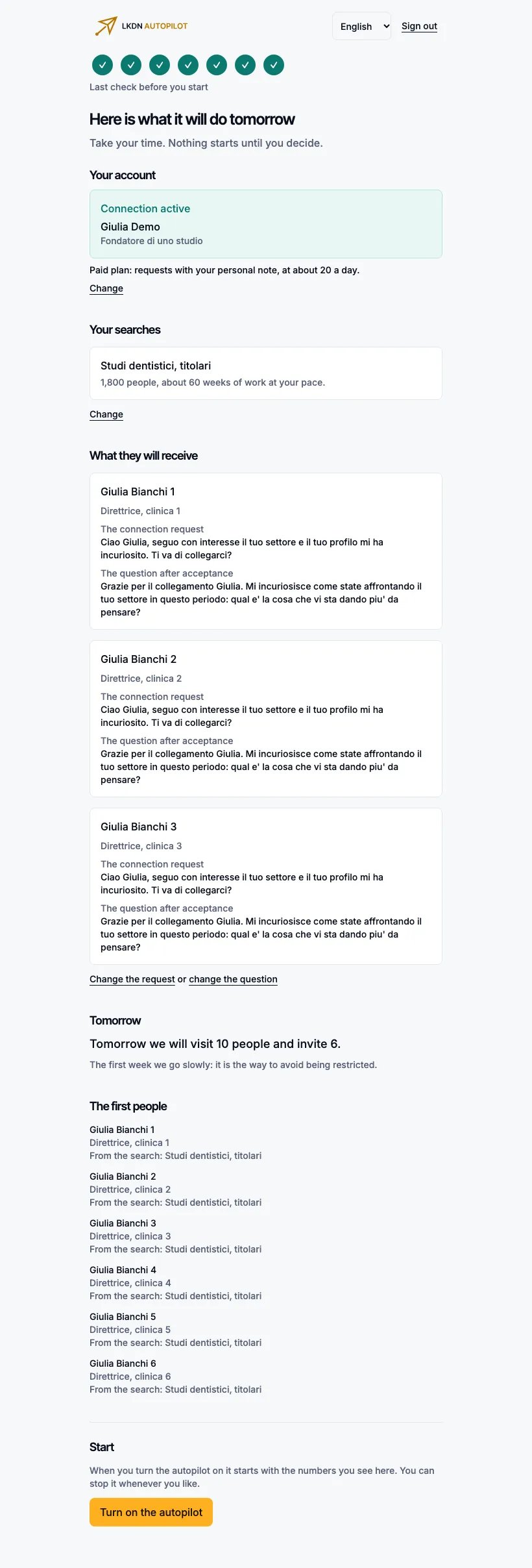
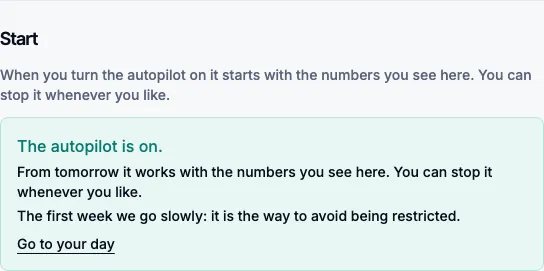
If something does not convince you, the Change links take you back to the right step. When everything is in place, press Turn on the autopilot.
If your day says “being prepared” #
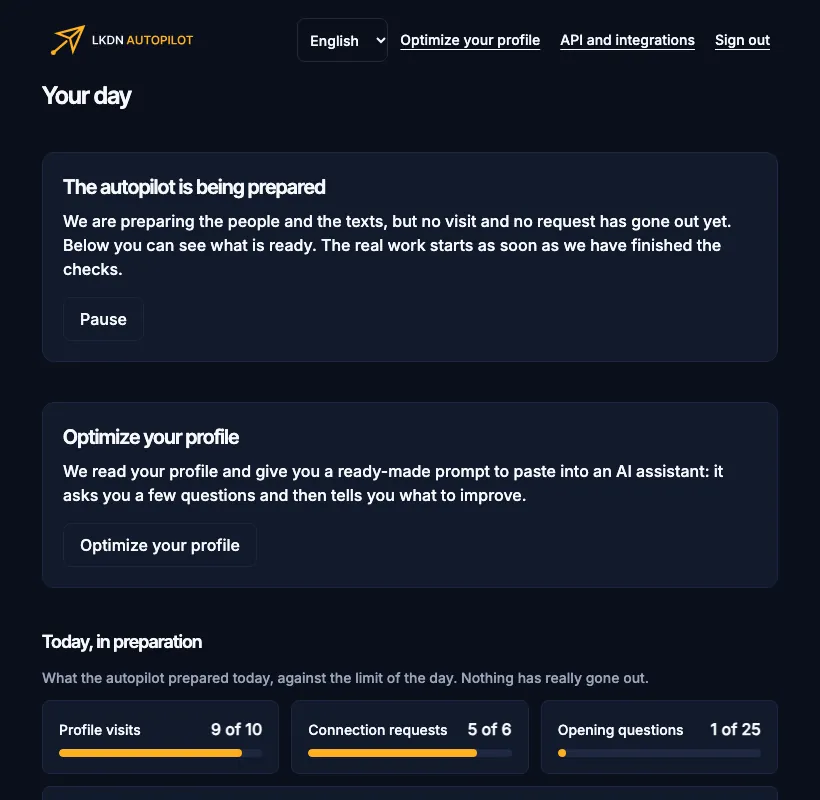
Right after you turn it on, your day may say “The autopilot is being prepared”. It means we are still preparing the people and the texts and running the checks on your account: no visit and no request has gone out yet, and the numbers you see are labeled as “prepared” and not as “sent”. You do not have to do anything: as soon as the checks are done the real work starts on its own and the label changes to “on”.
The dashboard #
After you turn it on, your everyday screen is Your day. From top to bottom:
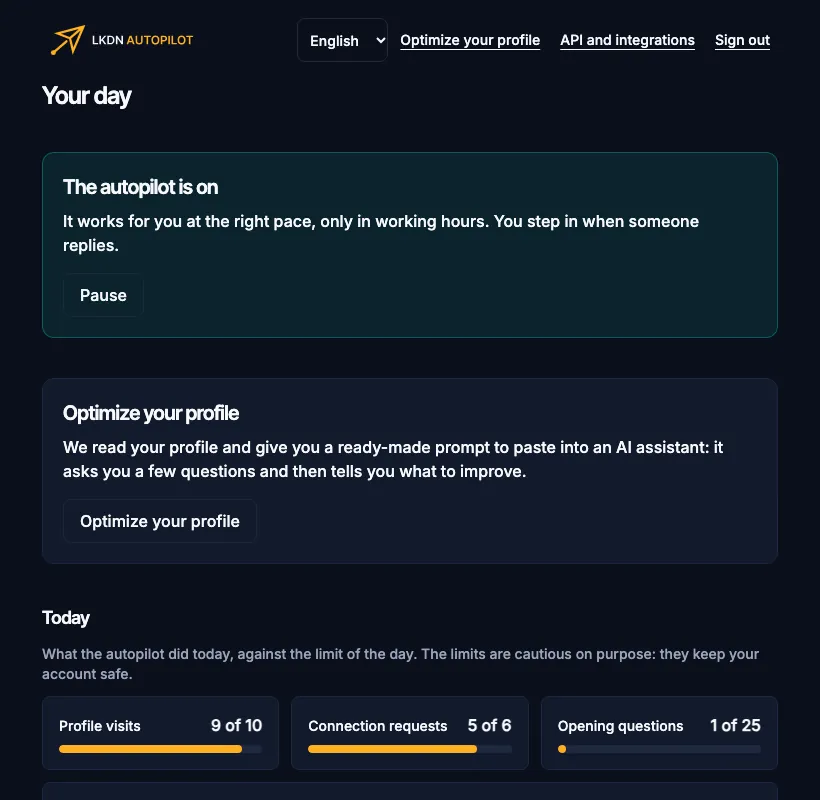
- The status: on, being prepared, paused (you stopped it) or suspended (because of the subscription, the connection or by us). If the autopilot is stopped, the screen says why.
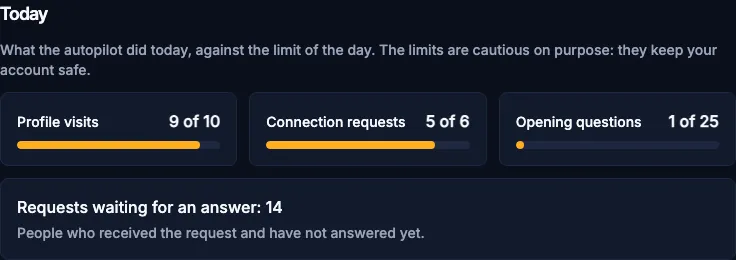
- Today: what the autopilot did today, against the limit of the day. The limits are cautious on purpose: they keep your account safe.
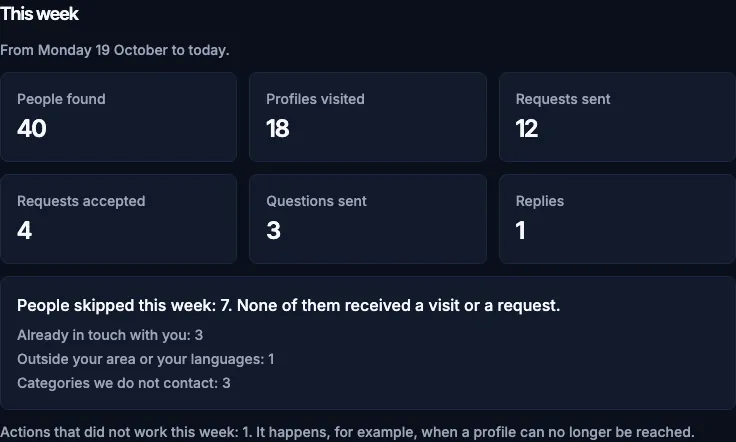
- This week: people found, profiles visited, requests sent and accepted, questions sent and replies. People skipped have a line of their own, with the reasons in plain words (categories we do not contact, outside your area or your languages, already in touch with you): none of them received a visit or a request.
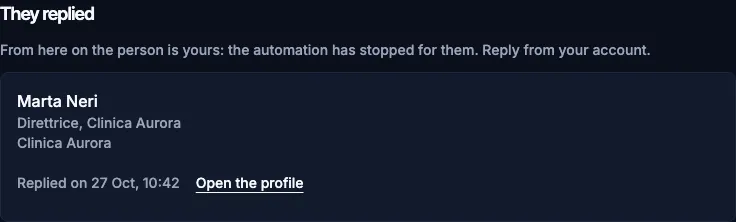
- They replied: the people who replied, with name, headline, company and a link to open their profile.
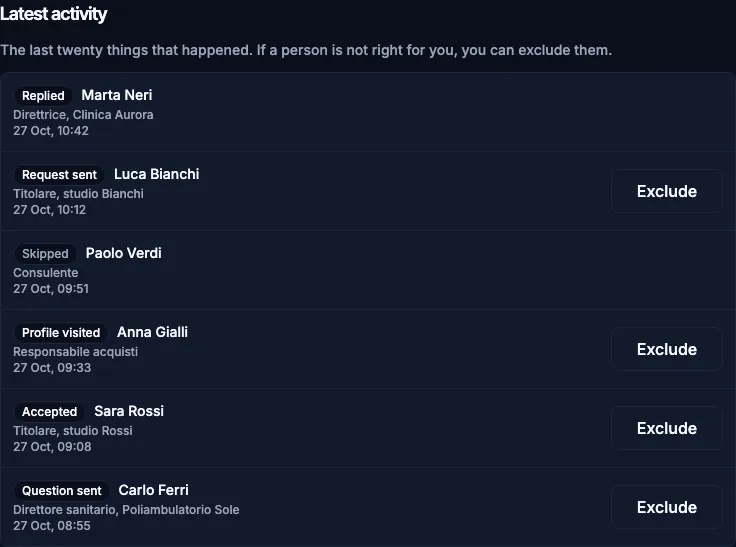
- Latest activity: the list of the last twenty things that happened, by person. It is your list of recent contacts: you see who was found, visited, invited, who accepted, who was sent the question, who was skipped and why.
At the top right you also find the links to Optimize your profile and to API and integrations.
Excluding a person #
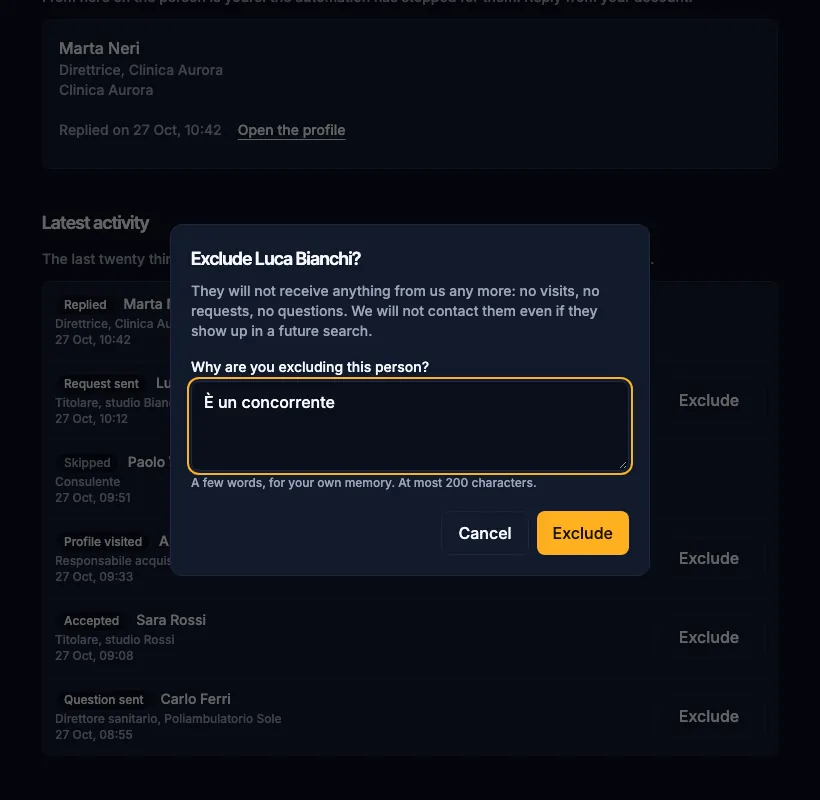
If a person is not right for you (a competitor, a friend, someone you do not want to disturb), press Exclude next to their name, write the reason in a few words (for your own memory, at most 200 characters) and confirm. From that moment they will receive nothing more from us, no visits, no requests, no questions, not even if they appear in a future search. Exclusion also works for people who have already received the request; you cannot exclude someone who has already replied.
What happens every day #
The autopilot works only on working days and during working hours: by default Monday to Friday, from 9 to 18 in your time zone, skipping the days you entered. It never works on Sunday. Every day, in short:
- It finds people. Once a day, before the day begins, it loads some new people from your searches and immediately discards those who must not be contacted.
- It checks before touching anyone. A profile visit is a contact too: the person gets a notification that you looked at them. That is why, before visiting, we check that the person is not in a category we do not contact, is not already your connection, is not outside the countries and languages you chose and has not been excluded. If something does not add up, the person is skipped before the visit, and we tell you.
- It visits the profiles of some people, at irregular intervals.
- It sends the connection requests to the people visited on the next working day, so that visit and request never fall on the same day.
- It checks who accepted, twice a day. Whoever accepted receives the opening question a few hours after accepting, always during working hours.
- It notifies you: every time someone replies, and with a summary once a day at the time you chose.
- It cleans up: requests that stay unanswered for about a month are withdrawn, to keep the LinkedIn queue tidy.
The same person is not contacted twice in a row: we do not write to them again if they have already received the request, if they replied or if they are already your connection.
The daily summary #
Once a day, at the time you chose in step 7, you receive an email with what happened: people found, visited, invited, accepted, questions sent, replies, pending requests, how much of the daily limit was used, and the things that need attention (a search that ran out of people, a connection to restore). If the autopilot is stopped, the subject line already says so, with the reason. On days with no activity and no problems, the email does not arrive.
What to do when a reply arrives #
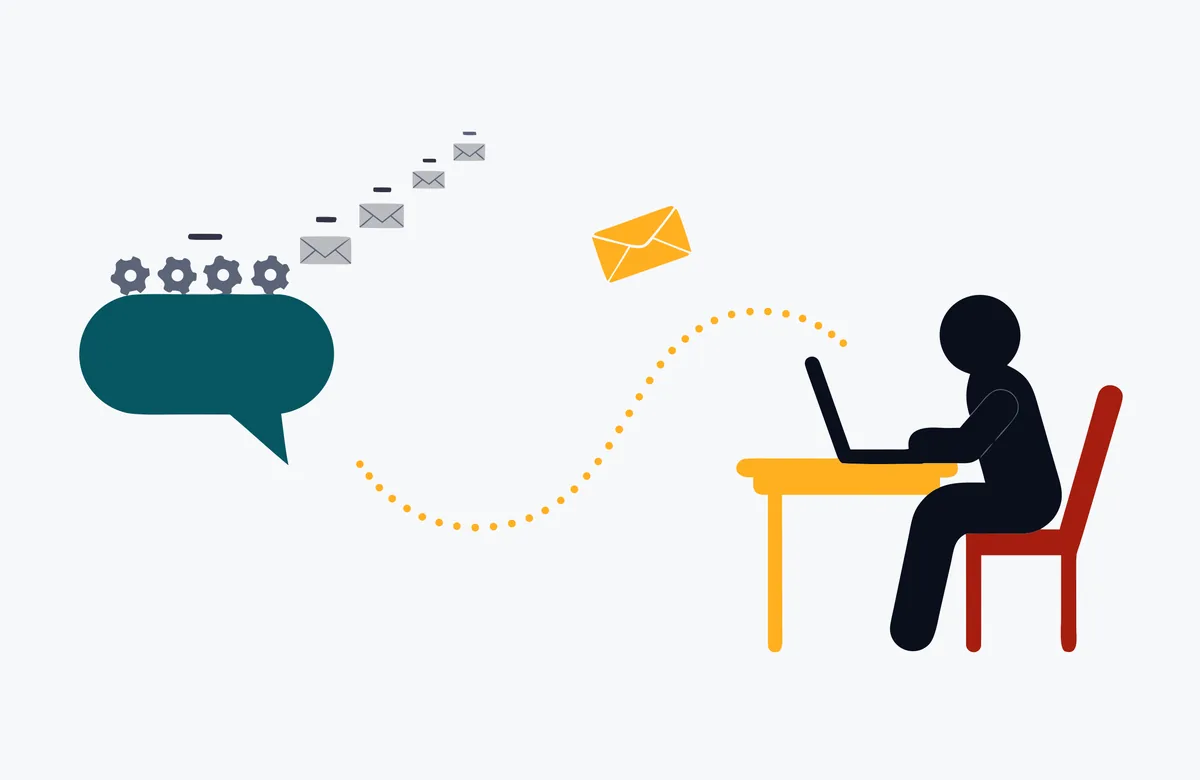
When a person replies, everything stops for them: no visit, no other message, ever. Right after, usually within five minutes, you receive an alert email with who replied, their headline, what we had asked them, what they replied and the link to open the conversation on LinkedIn. If several replies arrive together, we group them in a single email; we never send you more than one every ten minutes.
What you do:
- Read the email and open the conversation on LinkedIn with the link.
- Reply from your account, as you would by hand. You reply because the person was waiting for you: the autopilot never writes in your place in conversations.
- If the person deserves a follow-up, keep them in your CRM or in your usual way of working. We do not keep deals.
If you want to bring the messages into your own CRM, there is the API.
Pausing and resuming #
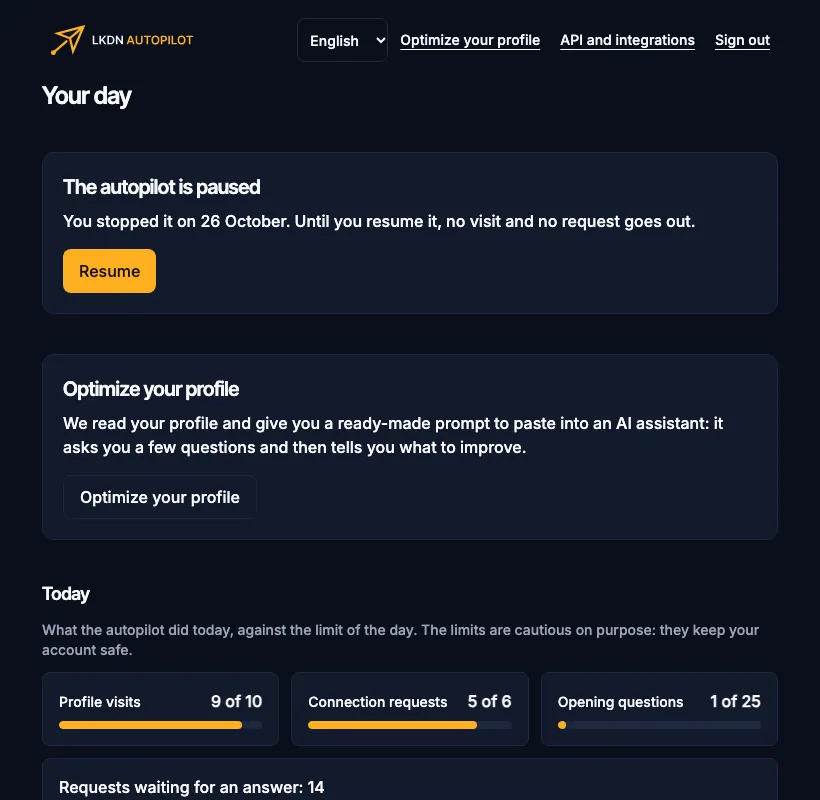
You can stop the autopilot whenever you want: for the holidays, for a period when you do not want new contacts, to review the texts. From the dashboard press Pause: from that moment no visit and no request goes out. To start again press Resume.
What you need to know:
- The people and the texts stay where they are. When you resume, the work starts again from where it stopped.
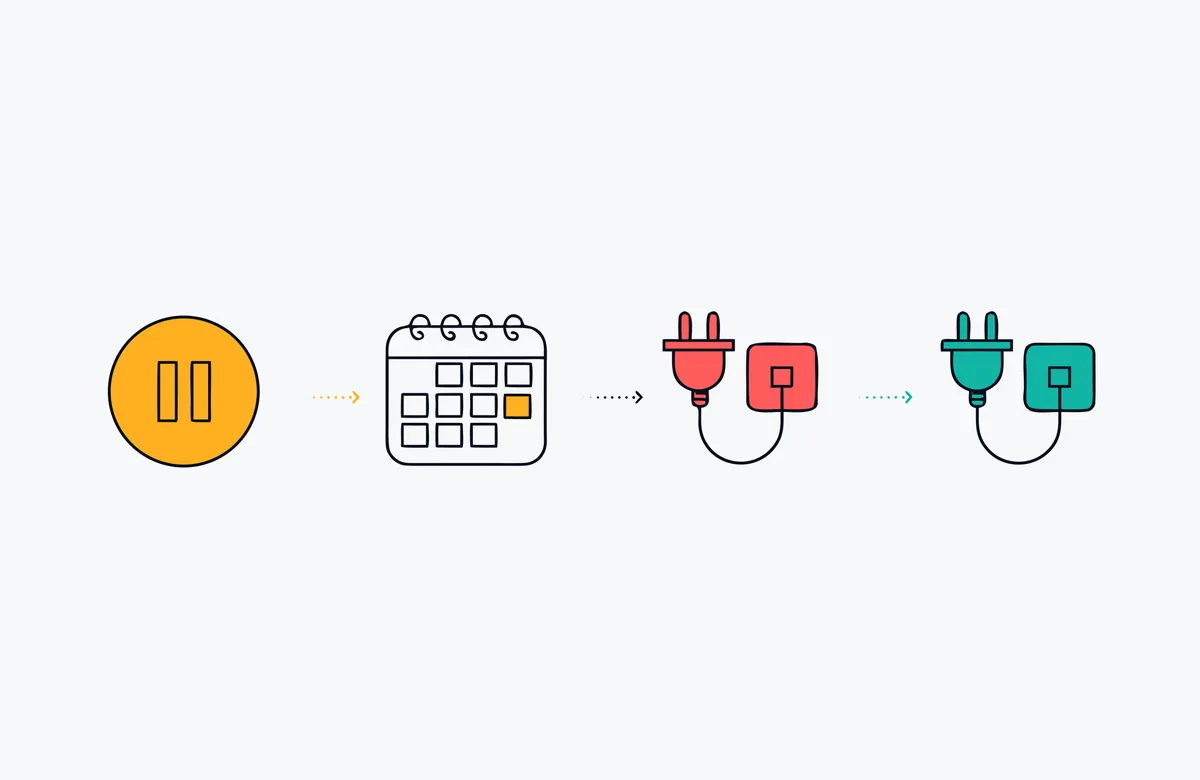
- A long pause releases the connection. If the pause lasts 30 days, we close the connection with your LinkedIn account: keeping it open for an account that is stopped makes no sense. You lose nothing of what you set up. When you resume, you reconnect your account with one click (step 1 tells you that the connection had been closed) and the autopilot starts again.
- After a long pause it starts again slowly. An account that was stopped for a long time and is reconnected starts again from the first day of the warm-up.
- Do not confuse your pause with ours. If you see “Suspended”, it was not you: it may be the subscription that is not active, the connection that is not working, or a check of ours on your account. The screen says which, and for the subscription and the connection it gives you the right button.
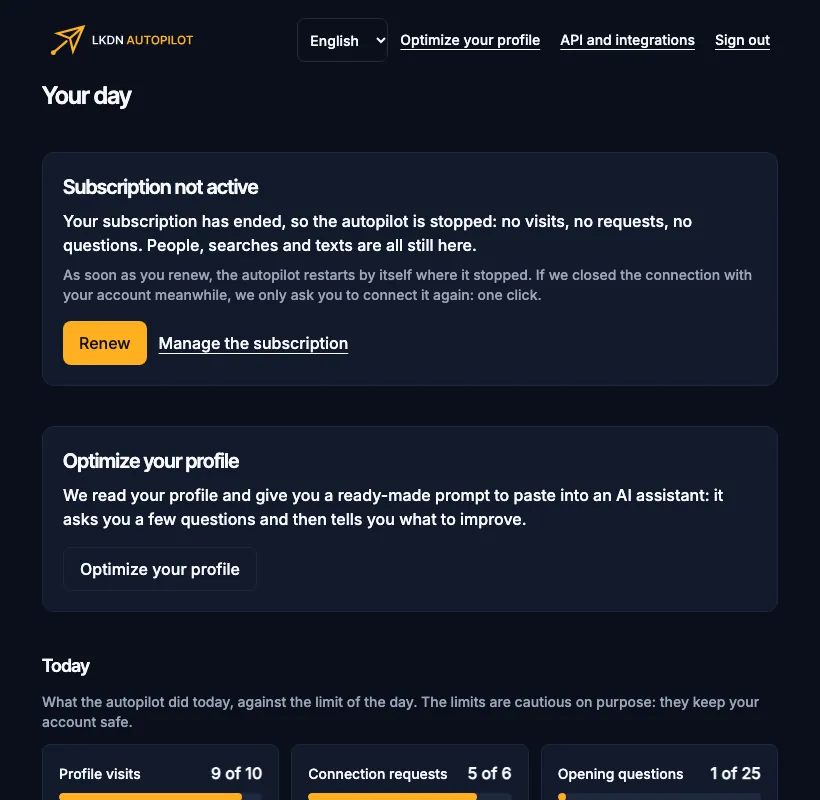
If the subscription expires or is suspended, the autopilot stops on its own, with the message “Subscription not active”: people, searches and texts stay. As soon as you renew, it starts again from where it stopped; if in the meantime we closed the connection, we only ask you to reconnect it.
Limits and pace #
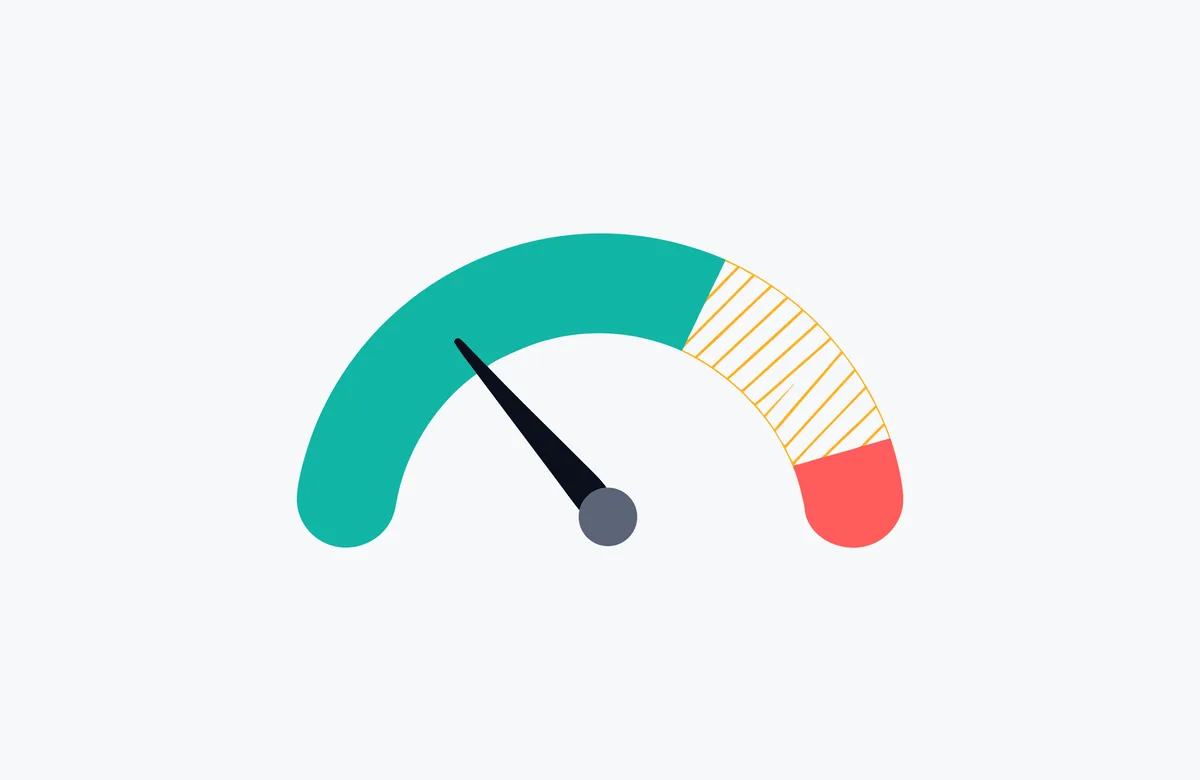
A LinkedIn account that behaves like a person lasts. One that does too much, too fast, gets restricted. That is why the autopilot works with cautious limits, the same for all clients, decided in a single place in the system.
The normal pace (you can always see it in the “Today” row of the dashboard):
| What | With a paid LinkedIn plan | With a free account |
|---|---|---|
| Connection requests per day | up to 20 | about 5, without a note |
| Connection requests in 7 days | at most 100 | at most 100 |
| Profile visits | up to 30 | lower |
| Opening questions | up to 25 | lower |
The numbers of the first days are lower: see Warming up the account. An account with fewer than 500 connections also stays at a lower pace.
Our ceilings, below LinkedIn’s. Even if it wanted to, the autopilot cannot exceed ceilings that sit 20% below the guidance of the connection providers and of LinkedIn, that is at 80% of what is recommended. For example, never more than:
- 64 connection requests a day;
- 160 connection requests in a week;
- 80 profile visits and reads a day, added together;
- 80 messages a day.
They are ceilings, not targets: the normal pace is much lower.
One shared budget #
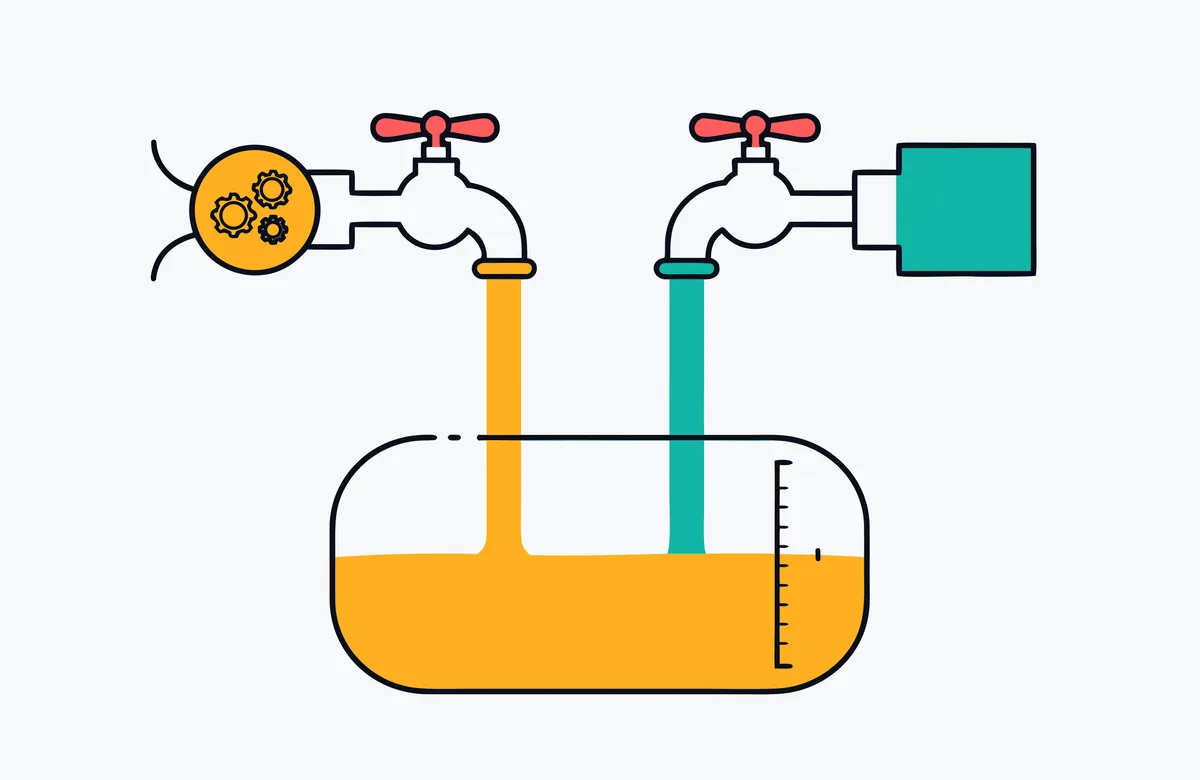
Your account has one single daily budget, the same for the autopilot and for the API and AI assistants. If the API uses 5 connection requests, the autopilot will have 5 fewer that day. No channel can exceed it, in any case: that is how the account stays safe.
A human pace #
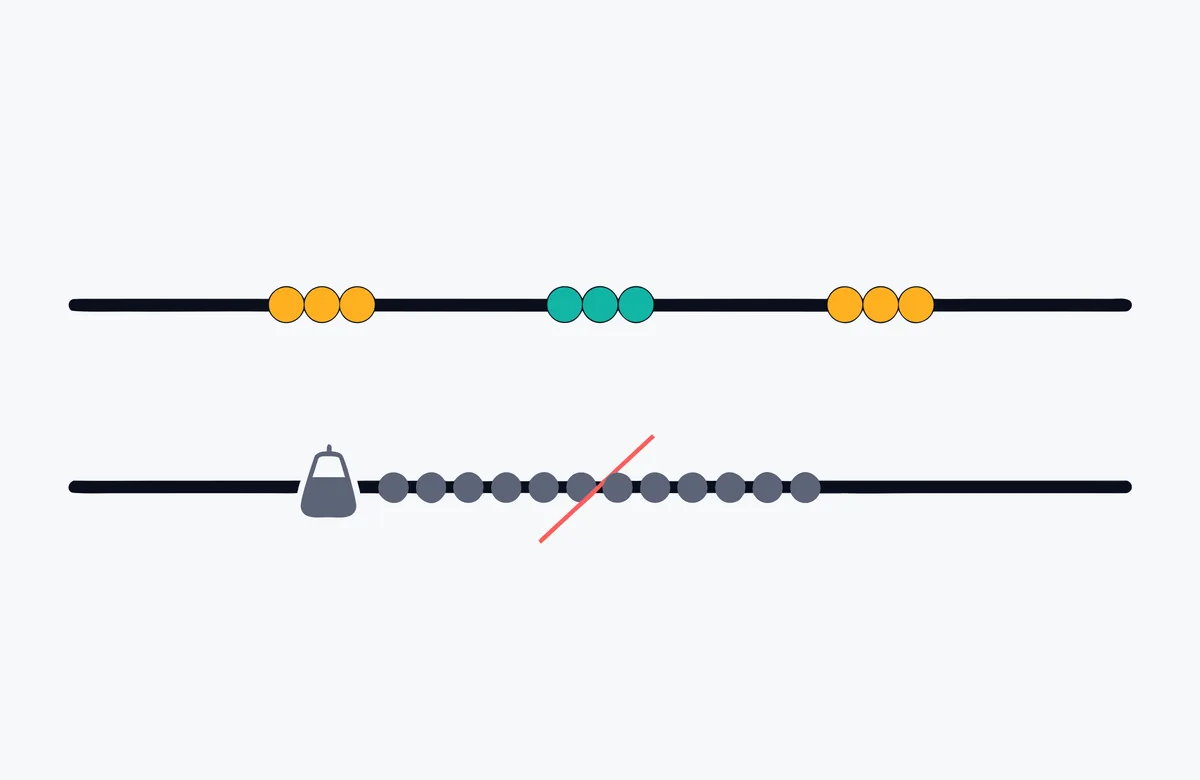
A person does not look at a profile every four minutes exactly, every day at the same time. Neither does the autopilot:
- actions do not follow a fixed clock: they are spread over two, three or four sessions during the day, with breaks in between;
- the day starts at a random time after working hours open, not always at 9 sharp;
- the number changes from one day to the next: every day the autopilot does a different amount, between 70% and 100% of the limit, and once a week a lighter day;
- the types of action are mixed: visits, requests and messages are not done in separate, orderly blocks.
That is why, looking at the dashboard, you will never find two identical days: it is on purpose.
The risk, in plain words #
Automation on LinkedIn is never free of risk. LinkedIn does not like automated use of profiles: our limits exist to reduce the risk, they do not eliminate it. In our experience LinkedIn usually sends up to three warnings before a permanent suspension, so if one arrives there is time to slow down and correct; at the first sign of a problem the autopilot stops on its own and notifies you. But it is experience, not a rule and not a guarantee: the decision is LinkedIn’s and, as the Terms of service say, the risk remains yours. LKDN Autopilot is not affiliated with LinkedIn.
Warming up the account #
LinkedIn looks more closely at accounts that are new, or that start doing things again after a long time. That is why, when an account starts with us or starts again after a long stop, the autopilot starts slowly and goes up in steps. It happens automatically: you do not have to do anything.
The warm-up starts again from day 1 for:
- a new account, at its first connection;
- an account idle for 14 days with no activity;
- an account reconnected after a long pause (the one that releases the connection).
The steps, day by day:
| Days | Connection requests per day | Visits per day | Messages per day |
|---|---|---|---|
| From 1 to 3 | 6 | 10 | 10 |
| From 4 to 7 | 10 | 15 | 15 |
| From 8 to 14 | 15 | 20 | 25 |
| After day 14 | grows by at most 5 a day each week, up to the limit of your plan | grows by at most 5 a day each week, up to the limit | grows by at most 5 a day each week, up to the limit |
Accounts with fewer than 500 connections stay on the last step (15 requests a day, 20 visits, 25 messages) until they pass 500. It is a choice made to protect you: with few connections LinkedIn can hold back requests for a check.
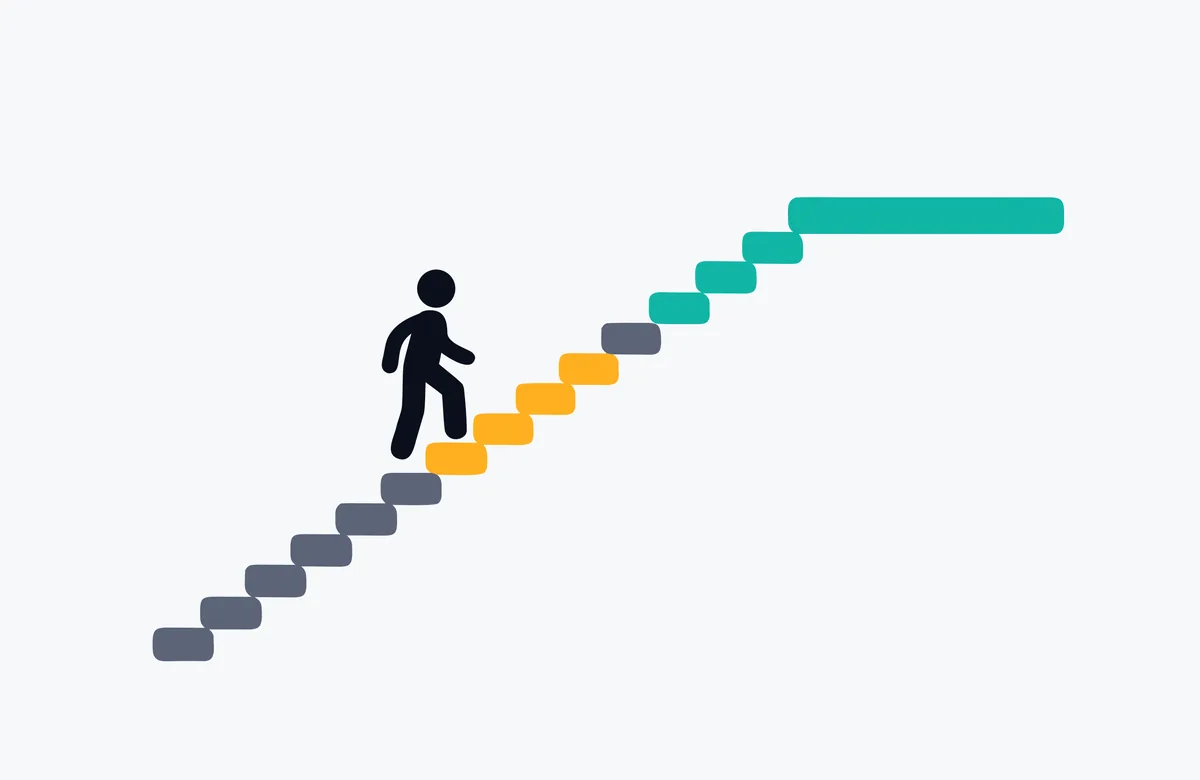
In the summary you see it as a sentence (“the first week we go slowly: it is the way to avoid being restricted”) and in the numbers of “Tomorrow we will visit… and invite…”, which are already those of the step you are on.
Why it is sometimes slower #
You may see fewer actions than you expected. Almost always it is on purpose. The most common reasons:
- The warm-up. A new account, or one reconnected after a stop, starts slowly.
- The LinkedIn plan. With a free account the volume is about 5 requests a day, without a note.
- The human pace. One lighter day a week, and days somewhere between 70% and 100% of the limit.
- Days or hours outside work. Outside working days and hours, or on the days you marked to skip, the autopilot does nothing.
- The autopilot is stopped. Paused, suspended because of the subscription or the connection: the dashboard says so at the top.
- The brake when LinkedIn signals a limit. It is the last case, and the most important.
When LinkedIn puts on the brakes #
If LinkedIn signals a limit (a request refused because a limit was reached, or too many requests close together), the autopilot does not insist:
- it stops connection requests for the rest of that day and for the following 24 hours, or, if the signal is more general, it stops all actions until the next day;
- if the signal repeats for two days in a row, it halves for 7 days the connection requests and the messages, and then goes back to the normal pace.
The app shows it to you: on the account that is going slower the reason appears, so you know it is not a fault. You do not have to do anything: the autopilot resumes on its own. If the brake seems to last too long, or if LinkedIn has sent you a warning about your account, write to us: when in doubt, stop it yourself with Pause.
Optimize your profile #
Every request the autopilot sends makes a stranger open your profile before deciding. A generic headline or an empty “About” section loses acceptances that no note can win back. We do not write your profile for you: we give you the work plan.
From the dashboard (link at the top, or the Optimize your profile card) open the page, press Read my profile and see what we read: sections present, counts, empty sections. Then you copy a ready-made prompt and paste it into a new chat in ChatGPT, Claude or Gemini: it asks you a few questions and then tells you what to improve, section by section, with the texts to paste.

We store nothing of your profile: the prompt lives only on that page until you leave it, and the reading notifies no one. Read every text again before publishing it: the AI can get facts wrong. The reading is allowed a limited number of times a day, which the page shows you.
Using the API and AI assistants too #
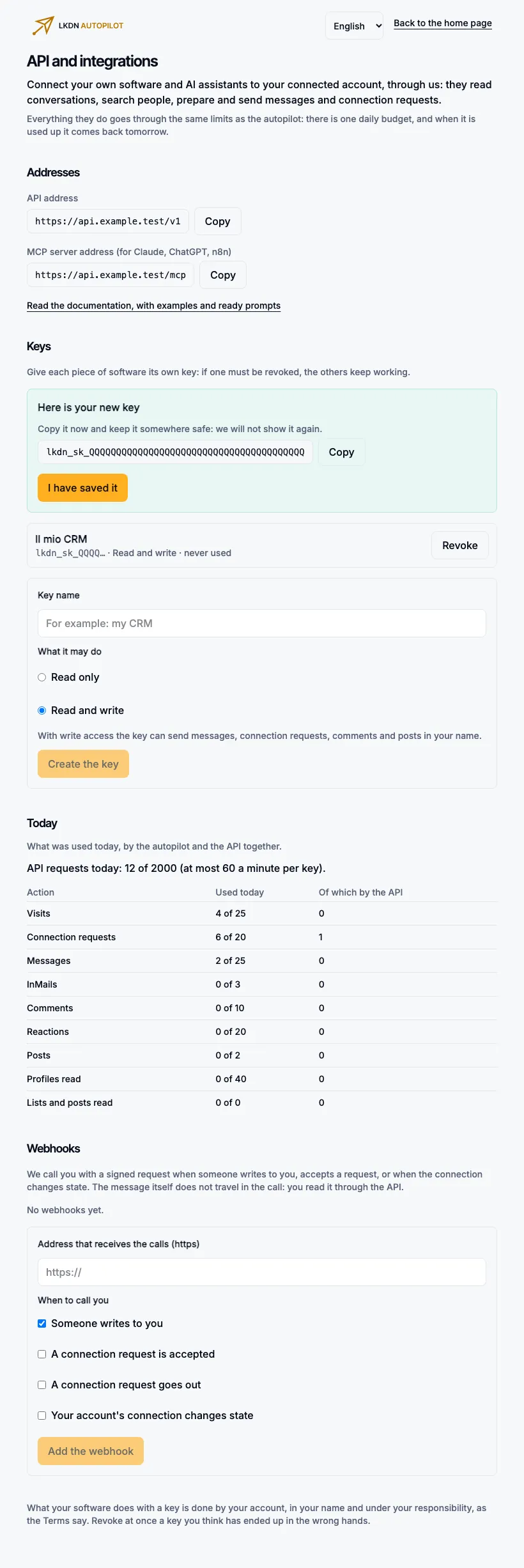
If you have a CRM, automations (n8n, Make, Zapier) or an AI assistant (Claude, ChatGPT), they can use your connected LinkedIn account, through us: read conversations, search for people, send messages and connection requests. In the app there is the API and integrations page: you create one key for each program (read-only, or read and write), you copy it only once and you keep it safe. API access is enabled on request, per account: write to us.
Three things to remember:
- The budget is the same as the autopilot’s, as seen in Limits and pace: the “Today” table on this page shows how much each one used.
- We do not keep the conversations. When you read them through the API, we read them from your account at that moment and pass them to you.
- What a key does, your account does, under your responsibility. Keep keys on a server, never in a web page, and revoke right away any key you think has ended up in the wrong hands.
All the details, the examples and the ready-made prompts are in the API documentation.
From your phone #
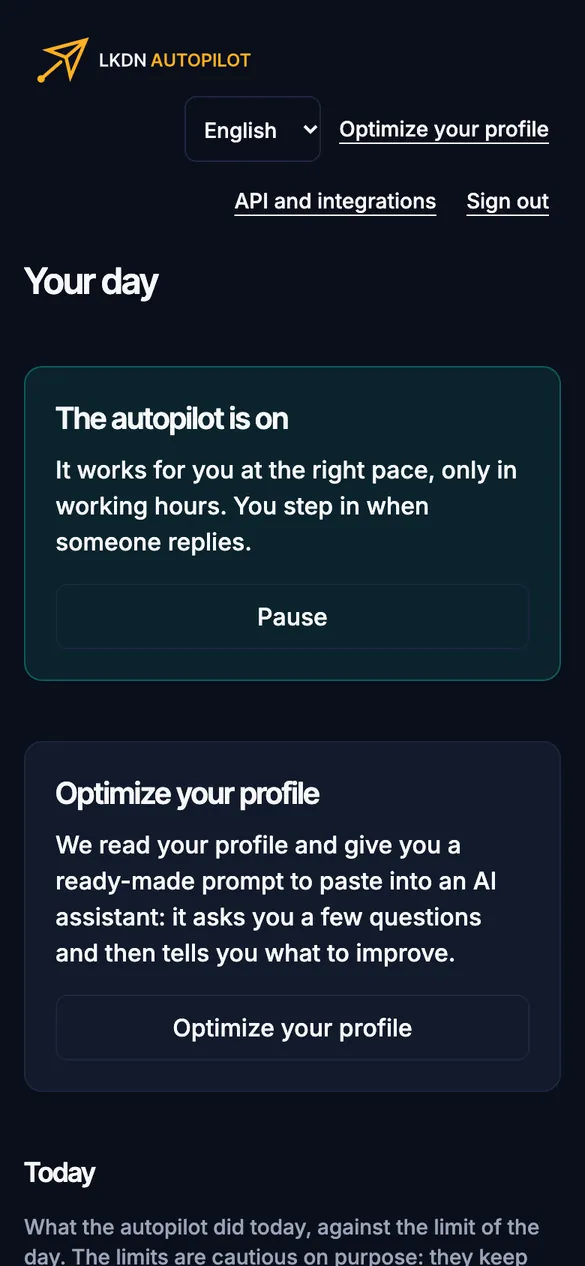
The app also works from a phone: the setup is designed one column at a time, and the dashboard lets you check your day, pause and resume wherever you are. The button at the top, Sign out, ends the session.
Frequently asked questions #
How long does it take to set everything up? About twelve minutes, if you know your best clients. You can stop and pick up again: the steps save themselves.
Do you see my LinkedIn password? No. You type it on the secure page of the hosted connection; we do not see it and we do not store it.
Do I need a paid LinkedIn plan? No. A free account works, at about 5 requests a day and without the personal note. The cheapest paid plan, Premium Career, is enough and brings the volume to 20 a day, with the note.
Do I need Sales Navigator? No. It only adds search filters.
Do I have to build the searches myself? No: we build them from your best clients. You confirm the segments and check the numbers.
Does the autopilot send messages made up by the AI? No. The AI proposes drafts during the setup, and you approve them. Every send uses your text, with the placeholders filled in. No model writes messages at the moment of sending.
What happens when someone replies? The autopilot stops for that person, forever, and sends you an email. You reply, from your account.
Does the autopilot follow up with people who do not reply? No. One request, one question if the person accepts, then that is it.
Can I stop it? Always, from the dashboard with Pause. Whenever you want, Resume.
What if I do not use it for a month? After 30 days of pause we close the connection with your account, because there is no point keeping it open. When you resume you reconnect it with one click and it starts again with the warm-up.
How many requests a day can I expect? Up to 20 with a paid plan, about 5 with a free account, and fewer in the first days. That is the pace, not a promise of results.
Is my account at risk of being restricted? Automation on LinkedIn is never free of risk. We have cautious limits, a human pace and an automatic brake when LinkedIn signals a limit, but we cannot eliminate it: the decision is LinkedIn’s and the risk remains yours. Read The risk, in plain words.
Can a person be contacted twice? As a rule, no: we do not write again to people who have already received the request, who replied or who are already your connections. Anyone you exclude never receives anything again.
Which people do you not contact? People in categories we do not contact (for example network marketing), people who are already your connections, people outside the countries and languages you chose, and people you excluded.
Can I use the API and the autopilot together? Yes. They use the same daily budget: what one uses, the other loses.
How do I cancel? From the same area where you bought it. When the subscription ends the autopilot stops and we close the connection with your account.
Troubleshooting #
| What you see | What it means and what to do |
|---|---|
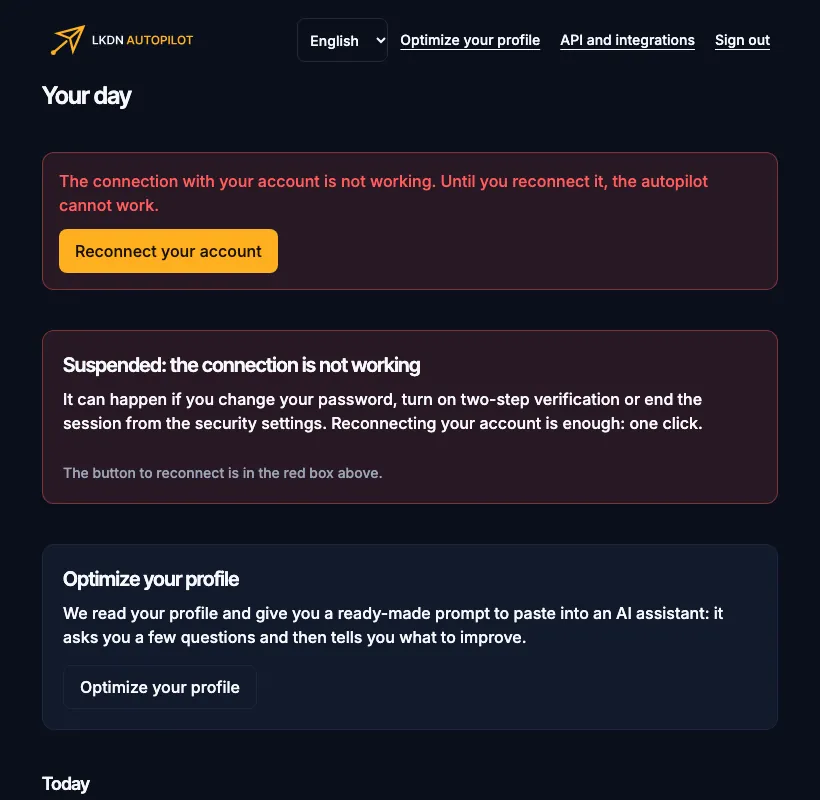
| Red box “The connection with your account is not working” | The connection with LinkedIn broke: it happens if you change your password, turn on two-step verification or end the session from the security settings. Press Reconnect your account and sign in again on the secure page. It starts again from where it was. |
| “Subscription not active” | The subscription has ended, been suspended or expired. Press Renew, or Manage the subscription. As soon as you renew, the autopilot starts again on its own. |
| “The autopilot is paused” | You stopped it. Press Resume. |
| “Suspended by us” | We are checking your account and in the meantime no action goes out. Write to info@lkdnautopilot.com. |
| “Being prepared” | We are still running the checks: no visit or request has gone out yet. You do not have to do anything. |
| Little or nothing went out today | Check the status at the top. Then: is it a working day? Is it within working hours? Is it a day you marked to skip? Are you in the first days of the warm-up? Have you used up the day’s budget (also through the API)? Or LinkedIn put on the brakes: see Why it is sometimes slower. |
| A search is “Too few” | Widen it with one of the suggestions (for example remove the areas) or remove the segment. One good search is enough to start. |
| A search has run out of people | We tell you in the daily summary: add a new segment from step 3. |
| The “Turn on the autopilot” button is refused, or a step does not complete | The message says what is missing; the summary takes you back to the step to finish. |
| The alert email does not arrive | Check the spam folder and the address chosen in step 7. If you have just changed email, reopen step 7 and save again. |
| You do not remember the password | From the sign-in page choose password recovery: we send you a code of 8 digits, valid for 30 minutes. |
| LinkedIn sent you a warning about your account | Pause the autopilot right away and write to us. Do not start again until we have talked. |
Contact #
For any question write to us at info@lkdnautopilot.com: we reply ourselves. For the API and access for AI assistants see the documentation. The rules that apply to the service are in the Terms of service and in the privacy notice.